> For the complete documentation index, see [llms.txt](https://docs.cartographer3d.com/llms.txt). Markdown versions of documentation pages are available by appending `.md` to page URLs; this page is available as [Markdown](https://docs.cartographer3d.com/original-plugin/firmware-archive/firmware-updating/via-dfu.md).
# via DFU
### Should You Be Using DFU?
* DFU mode should be used to flash if you dont have access to CAN in order to change from CAN to USB or if for some reason Katapult isnt available.
### Whats Required?
* Host device (RaspPi/Manta + CB1 etc)
* Cartographer Probe
* Two pairs of conductive (Metal) Tweezers
* USB-A to JST-PH Cable
{% hint style="info" %}
Using the scripts below, you may need to use the **Install Prerequisites** option first to make sure everything is configured prior to flashing.
{% endhint %}
## DFU Updating
### What is DFU
* DFU Mode (Device Firmware Upgrade Mode) is STM's bootloader thats apart of the STM32 chip included on cartographer probes. Its next to impossible to make this mode fail. For the STM chip to enter DFU mode all that needs to happen is to have the boot pin pulled high when the chip itself starts up.
### Step 1. Enter DFU Mode

{% hint style="danger" %}
No LEDs will be on when in DFU mode. If the blue LED is lit, even intermittently, the device is in runtime mode and this isnt what we want. Continue touching those pads till it works!
{% endhint %}
* Entering DFU mode is simple in theory but a bit more fiddly in practice. With the cartographer plugged in via USB, first short the two pads of the **BOOT0** set (marked 1 on the photo). With **BOOT0** still shorted, briefly short the RESET pads (marked 2). This will put the device in DFU mode.
* You can also just short the **BOOT0** pads and NOT the RESET pads, whilst plugging in the device via USB which should be easier to enter DFU.
* This process can be tricky and take some time, so listed below are two ways to make it simpler.
#### Make-it-easier option #1: printed tweezer guide
* You can use the PCB cover designed by [MakerMylo](https://www.youtube.com/@makermylo) to help with the fine-motor work of shorting pads. It clips onto the PCB and helps you to align tweezers accurately for shorting pads.
{% file src="/files/4WHYd3CV2Fni2mp6cVEz" %}
#### Make-it-easier option #2: solder-bridging the **BOOT0** pads
* Soldering a bridge on the **BOOT0** pads can make this process much easier. You will still need to briefly short the **RESET** pads, but you won't have to coordinate two sets of tweezers.
* Once you've flashed by using DFU mode, remember to de-solder the bridge.
### Step 2. SSH into Host & Run Script
{% hint style="info" %}
Via SSH, use the command `lsusb` to determine whether the device is in **DFU Mode**\
\
**OR**\
\
**This can now be entered and automated using the** [**script below**](https://docs.cartographer3d.com/cartographer-probe/firmware/firmware-updating/via-dfu#step-2.-ssh-into-host-and-run-script) **and using lsusb from option #2 which loops the lsusb command while you attempt to tap the pins.**
{% endhint %}
lsusb should look like this if DFU mode is found.
```bash
cd ~
if [ -d ~/cartographer_firmware/ ]; then
echo "Directory Exists - Starting Firmware Script"
cd ~/cartographer_firmware/
git pull
else
git clone https://github.com/Cartographer3D/cartographer_firmware.git
fi
~/cartographer_firmware/scripts/firmware.py -f dfu
```


{% hint style="info" %}
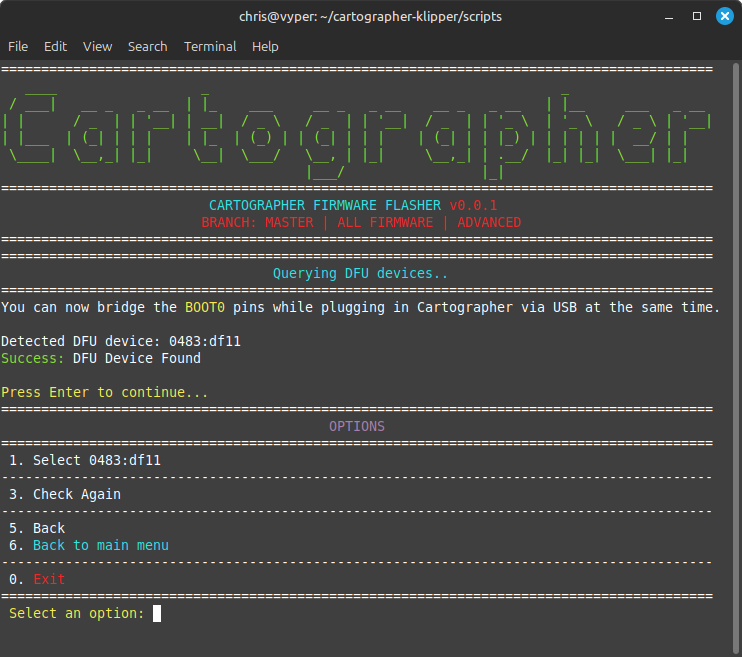
On the next screen it will attempt to find your DFU device. This will loop for 30 seconds while you put your device into DFU mode if it isn't already.\
\
You do this by either bridging the **boot0** pins and plugging in the USB or by plugging in via USB and then bridging both **boot0** and **reset** pins.
{% endhint %}
{% hint style="info" %}
Choose FULL\_CARTOGRAPHER\_CANBUS for using Cartographer via CANBUS.
Choose FULL\_CARTOGRAPHER\_USB for using Cartographer via USB
{% endhint %}

### Step 3. Done
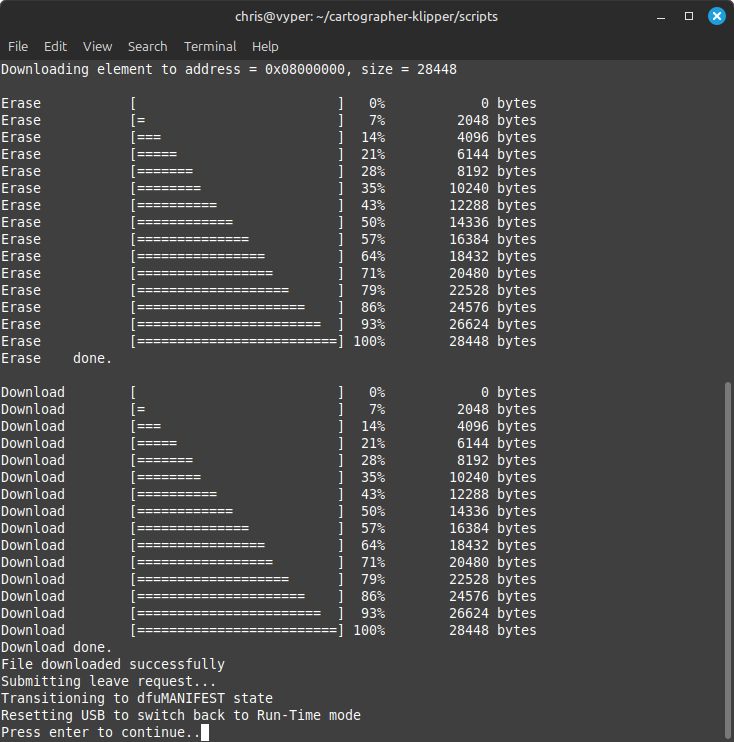
Once flashed, you will see the image below. This is a successful flash and youre all finished.
Screen #4
### Step 4. Now What?
* If you flashed for canbus, unplug cartographer and plug in via canbus
* If you flashed for usb, power cycle your device.
---
# Agent Instructions
This documentation is published with GitBook. GitBook is the documentation platform designed so that both humans and AI agents can read, navigate, and reason over technical content effectively. Learn more at gitbook.com.
## Querying This Documentation
If you need additional information that is not directly available in this page, you can query the documentation by asking a question.
Perform an HTTP GET request on the following URL with the `ask` and `goal` query parameters:
```
GET https://docs.cartographer3d.com/original-plugin/firmware-archive/firmware-updating/via-dfu.md?ask=&goal=
```
`ask` is the immediate question: it should be specific, self-contained, and written in natural language.
`goal` is what the user is ultimately trying to achieve, the reason they need the answer. Sharing it helps GitBook give you a better, more relevant answer. A goal is most helpful when it describes the outcome the user wants rather than restating the question. For example, with `ask=how do I create an API token`, a goal like `automate deployments from our CI pipeline` lets GitBook tailor the answer to that use case.
The response will contain a direct answer to the question and relevant excerpts and sources from the documentation.
Use this mechanism when the answer is not explicitly present in the current page, you need clarification or additional context, or you want to retrieve related documentation sections.