> For the complete documentation index, see [llms.txt](https://docs.cartographer3d.com/llms.txt). Markdown versions of documentation pages are available by appending `.md` to page URLs; this page is available as [Markdown](https://docs.cartographer3d.com/original-plugin/firmware-archive/manual-methods/update-or-re-flash-via-st-link.md).
# Update or Re-Flash via ST-Link
pdating via the ST-Link provides a reliable and easy way to flash any STM based MCU's especially if you have issues entering DFU mode, the only time where it becomes problematic is when older/fake ST-Links are used, please see the notes and ways of identifying below.
### Requirements
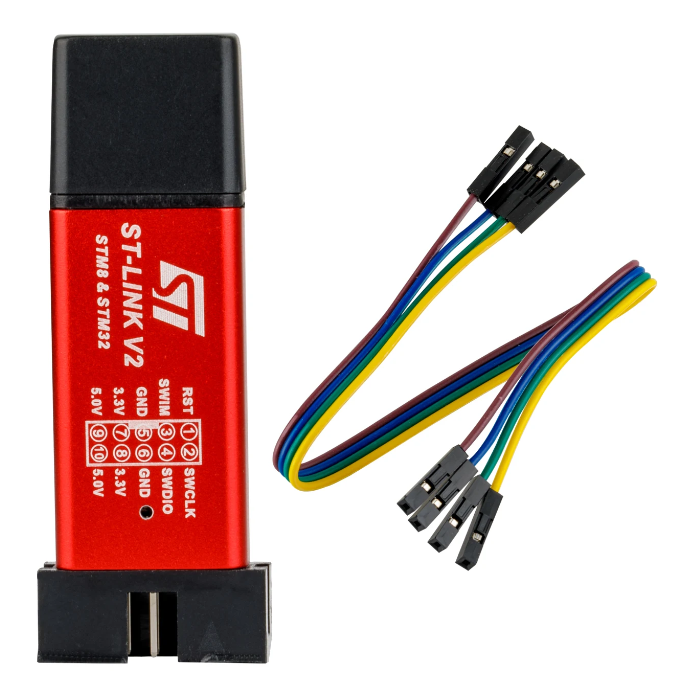
* ST-Link v2 (Below is a table of the most common ST-Link v2s. There are obviously more available on the market.
| STLink | ST-Link V2 Mini (Fake MCU) | ST-Link V2 Mini | ST-Link V2 |
| ---------------------- | --------------------------------------------------------------------------------------------------------------------------------------------------------------------------------------------------------------------------------------------------------- | --------------------------------------------------------------------------------------------------------------------------------------------------------------------------------------------------------------------------------------------------------- | --------------------------------------------------------------------------------------------------------------------------------------------------------------------------------------------------------------------------------------------------------- |
| Image | | | |
| Note | Uses fake STM Chip, Pin order is different and isnt always recognised via STM Cube Programmer. | Occasional Issues, depending on age / firmware. | Most Reliable |
| STMCubeProg Compatible |
❌
May not work
| ✅ | ✅ |
* STM Cube Programmer - (recommended version v2.15.0) **- if using Windows or MacOS**
* 4x DuPont M-M or M-F Cables
* Cartographer V3 Probe
{% embed url="" %}
### Step 1 - Wire up your probe
Connect the following pins based upon the different ST-Links.
| Hardware | Pinout | Connections (STLink - Probe) |
| ------------------------------- | --------------------------------------------------------------------------------------------------------------------------------------------------------------------------------------------------------------------------------------------------------- | ------------------------------------------------------------------------------------------------------------------------------------------- |
| **ST-Link V2** | |
SWDIO - SWD SWCLK - SCL GND - GND VCC - 5V
|
| **ST-Link V2 Mini (Fake Chip)** | |
SWDIO - SWD SWCLK - SCL GND - GND 3.3V\*- 5V
\* 5v may also work , but on some mini's it can cause stability issues.
|
| **ST-Link V2 Mini** | |
SWDIO - SWD SWCLK - SCL GND - GND 3.3V\*- 5V
\* 5v may also work , but on some mini's it can cause stability issues.
|
Connect your probe to the STLink connectors to the left and the right of the JST connector.
Pinout on Cartgorapher V2 and V3
{% hint style="warning" %}
You do NOT need to solder in the connector, pressure fit is fine.
{% endhint %}
Connected on ST-Link V2
Connected to a ST-Link v2 Mini (with a Genuine STM Chip)
### If using Windows follow the next steps, if you are using Linux (Pi) [click here](#flashing-via-linux-pi)
Open STM32CubeProg
Select **Open File** and select the file you want to open. For this, I recommend flashing the FULL complete firmware files, which include both **bootloader** and **Cartographer firmware.**
Select the file you need
### Step 3 - Check the Settings
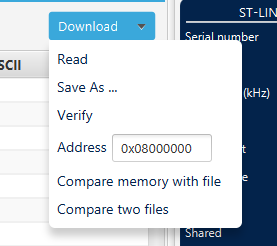
Ensure that you are writing to the correct memory location
If your firmware is from the **`combined-firmware`** folder or starts with the words `Katapult`**,** ensure that the address is set to `0x08000000`
Ensure that you have ST-LINK slelected on the right (this can default to DFU mode if you havnt used this before)
Now press Connect and the screen should indicate that the probe is Connected
### Flash and Confirm Firmware
Press download to Download the firmware to your Cartographer
The output should look something like this
Press Disconnect and unplug the probe.
### Flashing via Linux (Pi)
1. SSH into your 3D Printer using your client of choice
2. Run the following command (this may take a little while)
```bash
sudo apt-get update
sudo apt-get upgrade
sudo apt-get -y install stlink-tools
```
3. Navigate to the folder where your firmware is stored, usually
```bash
cd ~/cartographer-klipper/firmware/v2-v3/combined-firmware
```
4. Check if the ST-Link has been detected using `lsusb` if it is not visable, unplug and re-plug it back in.
Original lsusb not being able to see the ST-Link, second one able to see it.
4. run the following command replacing firmware.bin and the memory address with the correct address for the firmware that you are using.
```
st-flash write firmware.bin 0x08000000
```
For example to flash the Survey CAN firmware
```
st-flash write Full_Survey_Cartographer_CAN_1M_5_0_0.bin 0x08000000
```
Upon completion, you should see something like this
Successful Flash
### Reconnect your probe to your printer
Reconnect your probe to your 3D Printer, and it should work perfectly :)
---
# Agent Instructions
This documentation is published with GitBook. GitBook is the documentation platform designed so that both humans and AI agents can read, navigate, and reason over technical content effectively. Learn more at gitbook.com.
## Querying This Documentation
If you need additional information that is not directly available in this page, you can query the documentation by asking a question.
Perform an HTTP GET request on the following URL with the `ask` and `goal` query parameters:
```
GET https://docs.cartographer3d.com/original-plugin/firmware-archive/manual-methods/update-or-re-flash-via-st-link.md?ask=&goal=
```
`ask` is the immediate question: it should be specific, self-contained, and written in natural language.
`goal` is what the user is ultimately trying to achieve, the reason they need the answer. Sharing it helps GitBook give you a better, more relevant answer. A goal is most helpful when it describes the outcome the user wants rather than restating the question. For example, with `ask=how do I create an API token`, a goal like `automate deployments from our CI pipeline` lets GitBook tailor the answer to that use case.
The response will contain a direct answer to the question and relevant excerpts and sources from the documentation.
Use this mechanism when the answer is not explicitly present in the current page, you need clarification or additional context, or you want to retrieve related documentation sections.
 |
|  |
|  |
| Note | Uses fake STM Chip, Pin order is different and isnt always recognised via STM Cube Programmer. | Occasional Issues, depending on age / firmware. | Most Reliable |
| STMCubeProg Compatible |
|
| Note | Uses fake STM Chip, Pin order is different and isnt always recognised via STM Cube Programmer. | Occasional Issues, depending on age / firmware. | Most Reliable |
| STMCubeProg Compatible |  |
|  |
|  |
|