> For the complete documentation index, see [llms.txt](https://docs.cartographer3d.com/llms.txt). Markdown versions of documentation pages are available by appending `.md` to page URLs; this page is available as [Markdown](https://docs.cartographer3d.com/cartographer-probe/firmware/updating-firmware.md).
# Updating Firmware
To update your probes firmware, the simplest method is to use Katapult, though you can also use DFU via USB.
## Prerequisites
You must have both the Cartographer Firmware repository, and Katapult on your Pi, if you do not have these please connect via SSH and run the following command.
```bash
cd ~
if [ -d ~/cartographer_firmware/ ]; then
echo "Cartographer Firmware Exists - Updating Repository"
cd ~/cartographer_firmware/
git pull
else
git clone https://github.com/Cartographer3D/cartographer_firmware.git
fi
cd ~
if [ -d ~/katapult/ ]; then
echo "Katapult Exists - Updating Repository"
cd ~/katapult/
git pull
else
git clone https://github.com/Arksine/katapult.git
fi
```
You should add both of these to your Moonraker config file to ensure that they are always up to date.
```yaml
[update_manager Cartographer Firmware]
type: git_repo
path: ~/cartographer_firmware
origin: https://github.com/Cartographer3D/cartographer_firmware.git
is_system_service: False
[update_manager katapult]
type: git_repo
path: ~/katapult
is_system_service: False
origin: https://github.com/Arksine/katapult.git
```
## Firmware Automatic Update Script (CAN or USB)
You will need to navigate to your `cartographer_firmware` folder, to do this
```shellscript
cd ~/cartographer_firmware
```
Now you need to run the firmware update script
```bash
./fw_update.sh
```
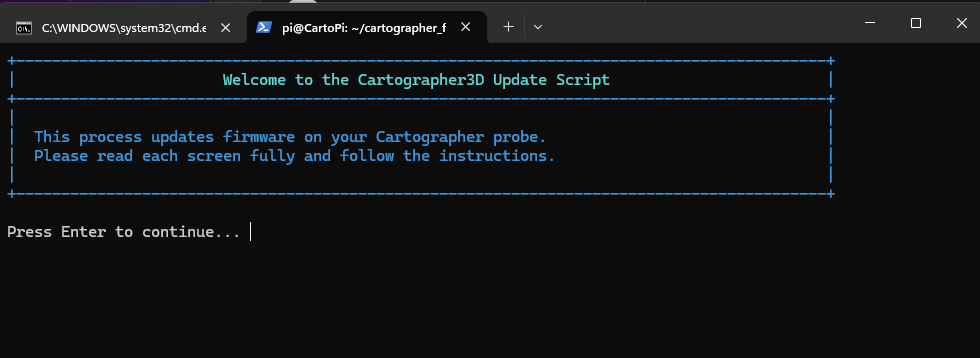
This will take you to the following menu, which you need to navigate through, you do this by pressing enter/return.
The script will now try to detect what type of probe you have, be it a Cartographer V3 or V4. It does this a number of ways, by analysing your Klippy.log, Querying Moonraker and Querying our API. This is to ensure that you get the most reliable detection possible, as updating the wrong firmware to the wrong probe will require a DFU reset.\
\
If you are running your probe on CAN, you are most likely running it on the can0 network, some people run their probe on a different can network like `can1`, or `can2`. If you are unsure... please reach out in our Discord, but you are most likely running it on `can0`, so press enter. If you are running it on a different network, type that network name. i.e. `can2`.
Now select the firmware version you want, the latest firmware version will be selected by default, but if you do want a different version select the number next to the firmware version.
You should now have the option to select either the Lite or Full firmware, Full is selected by default (option 1) for lite, select option 2.
Lite firmware is for lower power Pi's like found on the Creality K1 and K2, Qidis or a Pi like the Raspberry Pi 2.\
\
It will show you which firmware is being written, from which path, and which interface it is being written on.
it now gives you that information 1 more time, and a warning about what happens if you have selected the wrong information. If you have, just press N and come ask for help on Discord.
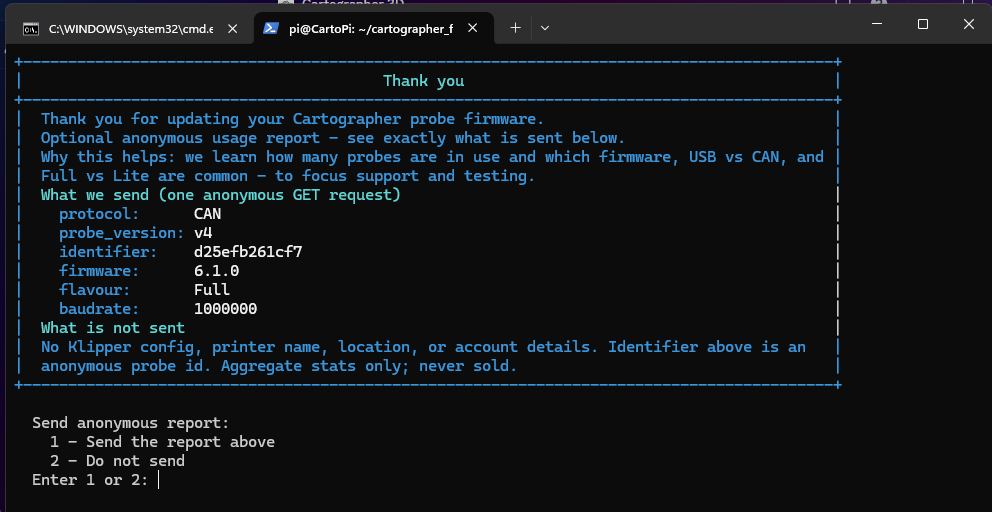
You will now be prompted to participate in our **anonymous usage report**.
This is **completely optional**, and **no data will be uploaded unless you choose to submit it**.
***
#### **What data is collected (if you opt in)**
* **Probe identifier** (USB Serial or CAN UUID)
* **Probe version** (V3 / V4)
* **Protocol** (USB / CAN)
* **Firmware version** (e.g. 6.1.0)
* **Firmware type** (Full / Lite)
* **CAN baud rate** (if applicable)
***
#### **Why we collect this**
To better understand real-world usage, including:
* **USB vs CAN usage**
* **Lite vs Full firmware adoption**
* **Common CAN speeds** (500k / 1M)
* **V3 vs V4 usage**
This helps us **guide future improvements** and prioritise development.
***
#### **Privacy**
* **We will never sell your data**
* **All shared statistics are fully anonymised**
* **All identifiers are removed before any analysis or reporting**
You are now done, go re-calibrate and print some more printer mods ;)
## Updating via USB - Manual Method
### Updating Cartographer via Katapult
You should know which version of the Cartographer Probe you have in order to be able to do this, please refer to the diagrams below to identify your version.
Cartographer V3 - Standard, Low Profile, RIght Angle
Cartographer V4 - Standard / Low Profile*
\*Cartographer V4 has a different connector on it, but the PCB is the same design.
#### Step 1 - Enter Bootloader Mode
The following steps can be done on both Cartographer V3 and Cartographer V4
{% tabs %}
{% tab title="Automatic Method" %}
We need to get our probe into the Katapult bootloader mode, to do so you can simply run this script
{% code overflow="wrap" %}
```bash
CARTO=$(ls /dev/serial/by-id/ 2>/dev/null | grep -i cartographer | head -n 1)
if [ -z "$CARTO" ]; then
echo -e "\e[31mERROR: No Cartographer probe found in /dev/serial/by-id/. Is it plugged in via USB?\e[0m "
fi
cd ~/klipper/scripts || exit 1
~/klippy-env/bin/python -c "import flash_usb as u; u.enter_bootloader('/dev/serial/by-id/$CARTO')"
```
{% endcode %}
{% endtab %}
{% tab title="Manual Method" %}
The initial step is noting down the probes Serial ID, you do this by typing the following command
```bash
ls -l /dev/serial/by-id/
```
You now need to load the probe into the Katapult bootloader, to do this you simply replace with your own serial ID and path as found in the above step.
```bash
cd ~/klipper/scripts
~/klippy-env/bin/python -c 'import flash_usb as u; u.enter_bootloader("")'
```
Example of the full command
```bash
cd ~/klipper/scripts
~/klippy-env/bin/python -c 'import flash_usb as u; u.enter_bootloader("/dev/serial/by-id/usb-Cartographer_614e_060004001443303856303820-if00")'
```
{% endtab %}
{% endtabs %}
Once your probe is in Bootloader mode, move onto the next step.
#### Step 2 - Flash Firmware
{% tabs %}
{% tab title="Cartographer V3" %}
Now your Cartographer is in Katapult Mode, you now need to navigate to the correct firmware to flash it.
**Automatic Full V3 USB Firmware**
{% code overflow="wrap" fullWidth="false" %}
```bash
KATAPULT=$(ls /dev/serial/by-id/ 2>/dev/null | grep -i katapult | head -n 1)
cd ~/cartographer_firmware/firmware/v2-v3/survey/6.1.0
~/klippy-env/bin/python ~/katapult/scripts/flash_can.py -f CartographerV3_6.1.0_USB_full_8kib_offset.bin -d /dev/serial/by-id/$KATAPULT
```
{% endcode %}
Your probe should now have the latest Cartographer Firmware installed on it. This page will be updated to include the command for the latest version available for this probe
**Manual - Full V3 USB Firmware**
Navigate to the folder where your firmware is located, for the example I will be using, I will be updating a v2 probe.
Now, run the following command, replacing \ with the firmware you are flashing, and \ with the serial ID and path.
```
~/klippy-env/bin/python ~/katapult/scripts/flash_can.py -f -d
```
Again, an example of a full command
```
~/klippy-env/bin/python ~/katapult/scripts/flash_can.py -f Cartographer_USB_8kib_offset.bin -d /dev/serial/by-id/usb-katapult_stm32f042x6_060012001643565537353020-if00
```
If successful, you should have the following output.
If successful, you should have the following output.
{% endtab %}
{% tab title="Cartographer V4" %}
Now your Cartographer is in Katapult Mode, you now need to navigate to the correct firmware to flash it.
**Automatic V4 Full USB Firmware**
{% code overflow="wrap" fullWidth="false" %}
```bash
KATAPULT=$(ls /dev/serial/by-id/ 2>/dev/null | grep -i katapult | head -n 1)
cd ~/cartographer_firmware/firmware/v4/firmware/6.1.0
~/klippy-env/bin/python ~/katapult/scripts/flash_can.py -f CartographerV4_6.1.0_USB_full_8kib_offset.bin -d /dev/serial/by-id/$KATAPULT
```
{% endcode %}
Your probe should now have the latest Cartographer Full Firmware installed on it. This page will be updated to include the command for the latest version available for this probe
**Automatic V4 Lite USB Firmware**
{% code overflow="wrap" fullWidth="false" %}
```bash
KATAPULT=$(ls /dev/serial/by-id/ 2>/dev/null | grep -i katapult | head -n 1)
cd ~/cartographer_firmware/firmware/v4/firmware/6.1.0
~/klippy-env/bin/python ~/katapult/scripts/flash_can.py -f CartographerV4_6.1.0_USB_lite_8kib_offset.bin -d /dev/serial/by-id/$KATAPULT
```
{% endcode %}
Your probe should now have the latest Cartographer Lite Firmware installed on it. This page will be updated to include the command for the latest version available for this probe
**Manual - Full V4 USB Firmware**
Navigate to the folder where your firmware is located, for the example I will be using, I will be updating a v2 probe.
Now, run the following command, replacing \ with the firmware you are flashing, and \ with the serial ID and path.
```
~/klippy-env/bin/python ~/katapult/scripts/flash_can.py -f -d
```
Again, an example of a full command
```
~/klippy-env/bin/python ~/katapult/scripts/flash_can.py -f Cartographer_USB_8kib_offset.bin -d /dev/serial/by-id/usb-katapult_stm32f042x6_060012001643565537353020-if00
```
If successful, you should have the following output.
If successful, you should have the following output.
{% endtab %}
{% endtabs %}
### Updating Cartographer via DFU
Prior to flashing, you will need to following tools
* 2 x Ferrous Tweezers (or any conductive tool to bridge the two pads)
* 1 x USB Cable terminated to work w/ Catographer
**Entering DFU Mode**
{% tabs %}
{% tab title="Cartographer V3" %}
To enter DFU Mode, it can be a bit fiddly, but once you get the knack of it, it's fairly simple.
Plug your USB cable into the device you will be flashing from and your Cartographer probe, this can be either a seprate Windows PC, Mac, or a Linux machine, or the device you run your 3D Printer off.
Using your ferrous tweezers, or similar use one to bridge pads 1 (boot0), once you have a solid contact on those tap pad 2 (reset) with your other ferrous tool.
If you have done this correctly, your device should have entered DFU Mode.
{% endtab %}
{% tab title="Cartographer V4" %}
To enter DFU Mode, it can be a bit fiddly but with V4 due to the use of holes rather than pads it is considerably easier, but once you get the knack of it, it's fairly simple.
Firstly using the supplied USB cable, plug this into the Cartographer (Molex Sherlock) connector.
Then using your ferrous tweezers or similar, bridge the holes in box 1 (BT0 & 3V3) and then while still bridging those holes plug in your Cartographer V4 via the USB connector of the cable into the device you will be flashing from this can be either a separate Windows PC, Mac, or a Linux machine, or the device you run your 3D Printer off such as a Raspberry Pi.\
\
This should then show the V4 in DFU mode.
{% endtab %}
{% endtabs %}
If you have done this correctly, your device should have entered DFU Mode.
To check,
* Linux - follow the following steps
* SSH in, or load a terminal shell.
* type `lsusb` in your bash shell, it should list a device in DFU Mode
* One of the options should be `Bus 001 Device 004: ID 0483:df11 STMicroelectronics STM Device in DFU Mode` - This (as long as you don't have any other devices in DFU Mode) should be your Cartographer Probe in DFU Mode.
* Windows - follow the following steps
* Start Menu
* Search and open "Device Manager"
* Scroll down to Universal Serial Bus Devices
* You should see STM32 BOOTLOADER as an option
* 
#### Flashing via STM32CubeProgrammer (Windows & MacOS)
Download and Install STM32CubeProgrammer from [here](https://www.st.com/en/development-tools/stm32cubeprog.html), I warn you it requires you to sign up for an account.
{% hint style="info" %}
Firmware files are available
{% endhint %}
Version 2.14.0 is recommended due to a known bug in 2.16.0 which causes issues when flashing via STMCubeProgammer - this can be selected from the version 'drop down' on the site.
Open the application, and on the RIGHT side, select the following options and press **Connect**.
STM32CubeProgrammer Settings
Once you have connected, Click Open File - you will need to select both the Katapult Bootloader for your board, and your Cartographer Firmware that you have downloaded.
Firmwares Loaded
For your Cartographer Firmware, you need to set the address to `0x08002000` This provides the 8KiB offset for the firmware. Katapult firmware can be flashed at the default `0x08000000.`
How to change the address in STM32CubeProgrammer
On each of the firmware's press "Download", starting with Katapult, then with Cartographer. Now press Disconnect in the TOP RIGHT corner.
If your BLUE LED is Flashing, you have not fully flashed your Firmware, and you should start again, If you now Power Cycle your probe, or simply hit the RESET (2) pads from earlier, your probe should react when it has anything solid metal put under it.
#### Flashing via DFU Util (Linux Terminal).
SSH into your linux host MCU, ensuring that your Cartographer is plugged in and in DFU Mode.
{% tabs %}
{% tab title="Cartographer V3" %}
Navigate into the correct folder, so if you want to update your v2 or v3 run the following command.
```
cd ~/cartographer_firmware/firmware/v2-v3/survey/6.1.0
```
Once in the folder, simply check that your probe is still in DFU Mode by running `lsusb`, and if you still get a result stating it is in DFU Mode, run the following command.
```
sudo dfu-util -R -a 0 -s 0x08002000:leave -D firmware.bin -d 0483:df11
```
NOTE - REPLACE the address (`0x08000000`) with what ever is listed in the [table here](https://docs.cartographer3d.com/cartographer-probe/firmware/manual-methods/firmware-update) for the specific firmware you are using, and rename `firmware.bin` to what ever the firmware file you are using is called.
Example to install the latest stable V3 Firmware:
{% code overflow="wrap" %}
```bash
sudo dfu-util -R -a 0 -s 0x08002000:leave -D CartographerV3_6.1.0_USB_full_8kib_offset.bin -d 0483:df11
```
{% endcode %}
Once compelte, it should exit out of DFU mode, and you should be able to find your probe on USB.
{% endtab %}
{% tab title="Cartographer V4" %}
Navigate into the correct folder, so if you want to update your v4 run the following command.
```bash
cd ~/cartographer_firmware/firmware/v4/firmware/6.1.0
```
Once in the folder, simply check that your probe is still in DFU Mode by running `lsusb`, and if you still get a result stating it is in DFU Mode, run the following command.
```bash
sudo dfu-util -R -a 0 -s 0x08002000:leave -D firmware.bin -d 0483:df11
```
NOTE - REPLACE the address (`0x08000000`) with what ever is listed in the [table here](https://docs.cartographer3d.com/cartographer-probe/firmware/manual-methods/firmware-update) for the specific firmware you are using, and rename `firmware.bin` to what ever the firmware file you are using is called.
Example to install the latest stable V4 Firmware:
```bash
sudo dfu-util -R -a 0 -s 0x08002000:leave -D CartographerV4_6.1.0_USB_full_8kib_offset.bin
```
Once compelte, it should exit out of DFU mode, and you should be able to find your probe on USB.
{% endtab %}
{% endtabs %}
{% embed url="" %}
## Update via CAN - Manual Method
### Updating Cartographer via Katapult on CAN
#### Step 1 - SSH into your printer
#### Step 2 - Plug Cartographer in via CANBUS
Your Cartographer will already need to have CAN firmware on the probe, to change from USB to CAN, please follow [Re-Flashing](/cartographer-probe/firmware/re-flashing.md).
#### Step 3 - Get Your UUID
You will need to get your probes UUID, this should be in your printer.cfg if you have already setup the probe, it will either be under `[mcu cartographer]`, `[cartographer]`, or `[scanner]`
If you have not set it up already, search for the UUID either in the mainsail device finder menu, or by using the command `~/klippy-env/bin/python ~/klipper/scripts/canbus_query.py can0` (note, if the device is in your printer.cfg or similar, it will not find it.
#### Step 4 - Flash the Firmware
You now need to flash your Cartographer, below will give you the command to flash the latest recommended firmware for each device, to build your own command you just need to navigate to the directory of the firmware you are flashing and modify the below command
```
python3 ~/katapult/scripts/flash_can.py -i can0 -f -u
```
{% hint style="danger" %}
You will need to replace \ with your UUID found in step3.
{% endhint %}
{% tabs %}
{% tab title="Cartographer V2 CAN & V3" %}
#### Update Cartographer V3 to firmware 6.1.0
{% code overflow="wrap" %}
```bash
cd ~/cartographer_firmware/firmware/v2-v3/survey/6.1.0/
python3 ~/katapult/scripts/flash_can.py -i can0 -f CartographerV3_6.1.0_CAN_1M_full_8kib_offset.bin -u
```
{% endcode %}
{% endtab %}
{% tab title="Cartographer V4" %}
#### Update Cartographer V4 to firmware 6.1.0
{% code overflow="wrap" %}
```bash
cd ~/cartographer_firmware/firmware/v4/firmware/6.1.0/
python3 ~/katapult/scripts/flash_can.py -i can0 -f CartographerV4_6.1.0_CAN_1M_full_8kib_offset.bin -u
```
{% endcode %}
#### Update Cartographer V4 to firmware 6.1.0 Lite
See [here ](https://docs.cartographer3d.com/cartographer-probe/firmware#full-vs-lite-firmwares)for a description around the lite firmware
{% code overflow="wrap" %}
```bash
cd ~/cartographer_firmware/firmware/v4/firmware/6.1.0/
python3 ~/katapult/scripts/flash_can.py -i can0 -f CartographerV4_6.1.0_CAN_1M_lite_8kib_offset.bin -u
```
{% endcode %}
{% endtab %}
{% endtabs %}
---
# Agent Instructions
This documentation is published with GitBook. GitBook is the documentation platform designed so that both humans and AI agents can read, navigate, and reason over technical content effectively. Learn more at gitbook.com.
## Querying This Documentation
If you need additional information that is not directly available in this page, you can query the documentation by asking a question.
Perform an HTTP GET request on the following URL with the `ask` and `goal` query parameters:
```
GET https://docs.cartographer3d.com/cartographer-probe/firmware/updating-firmware.md?ask=&goal=
```
`ask` is the immediate question: it should be specific, self-contained, and written in natural language.
`goal` is what the user is ultimately trying to achieve, the reason they need the answer. Sharing it helps GitBook give you a better, more relevant answer. A goal is most helpful when it describes the outcome the user wants rather than restating the question. For example, with `ask=how do I create an API token`, a goal like `automate deployments from our CI pipeline` lets GitBook tailor the answer to that use case.
The response will contain a direct answer to the question and relevant excerpts and sources from the documentation.
Use this mechanism when the answer is not explicitly present in the current page, you need clarification or additional context, or you want to retrieve related documentation sections.